
Recruiter Troubleshooting - Career Fair Platform
Below are fixes to connection issues that you may experience during the testing process and on the day of the career fair.
Possible Causes
- Closed the browser window without logging out
- Browser "thinks" you're still logged in
Fixes
- Close Chrome Window
- Open Chrome Window and clear browser history.
- Ctrl-h (PC) or Cmd-h (Mac)
- Click "Clear browsing data" icon
Note: To prevent this, always log out using the .
Possible Cause
- Connection to the system has timed out.
- Browser cache (history) needs clearing.
Possible fixes (try in order)
- Switch from “Active” to “Not Active”, back to “Active”.
- Logout and login back in.
- Close Chrome and clear all browser history (check all boxes except passwords).
- Reboot computer.
- Reboot router (unplug/reconnect).
Possible Causes (during live event)
- Job Seeker may have weak internet connection
- Job Seeker may have video turned off
During Testing
You may see yourself during the testing process as you are connecting as a recruiter and a job seeker.
Possible Causes
- Job seeker has audio muted
- Job seeker doesn't have their mic connected to the browser
Possible Fixes
- Use text messaging
- Direct the job seeker to disconnect and check trouble shooting
Possible Causes
- Job seeker has weak internet connection
- Job seeker has video and audio muted
Possible Fixes
- Send a text message to job seeker asking to unmute
- Click the red phone icon to end meeting (hang up)
Note: if this continues, set your Agent State to "Not Ready" and wait 30 seconds.
Possible Causes
- Video is being blocked by fire wall
- Another video application is active
Possible Fixes
- Use incognito window.
- Quit any video apps running.
- Logout of VPN or company network.
- Provide instructions to your IT team to allow the platform access.
Network Requirements and Instructions for IT
Possible Causes
- Recruiter Video is blocked
Possible Fixes
- Logout of other video applications (like zoom)
- Completely log out of platform and use incognito
- Logout of VPN Company Network
- In the Chrome browser, click three dots .
- Choose the Zoom +/ - feature to adjust your screen smaller than 100%.
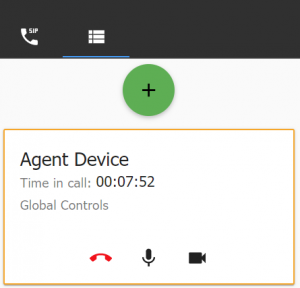 The disconnect icon is in the Agent Device box (during the job seeker meeting).
- Adjust your screen size.
- Click the white box icon to return to the Agent Device box.